

How Can You Embed Your Brand Community on Your Website Using Genuin Embeds?
Embedding your community content directly into your website allows you to bring social, creator, and brand-driven video experiences into the environments where your audience already spends time. Instead of sending users to another platform, Genuin Embeds let you surface community-driven content natively within your site or app.
This guide explains how to create and manage embeds using the Brand Control Center and how they help increase engagement, discovery, and watch time.
What Are Genuin Embeds?
Genuin Embeds allow brands to integrate community video feeds into their owned digital properties such as websites, product pages, or apps.
Once embedded, these feeds dynamically display video content from your brand communities, making it easy for visitors to discover and interact with your content without leaving your ecosystem.
What Embeds Enable
| Capability | Description |
|---|---|
| Native Video Integration | Display community video content directly on your website |
| Dynamic Content Updates | New community posts appear automatically |
| Engagement Tracking | Monitor impressions, users, watch duration, and completion rate |
| Flexible Layout Options | Choose between feed, wall, or carousel experiences |
| Cross-platform Support | Works across web and mobile experiences |
Step-by-Step: Creating a New Embed
Follow these steps to generate an embed from the Brand Control Center.
Step 1: Log in to the Brand Control Center
Access your brand dashboard and navigate to:
Grow > On Site
This section contains tools for embedding your community experiences across your digital ecosystem.
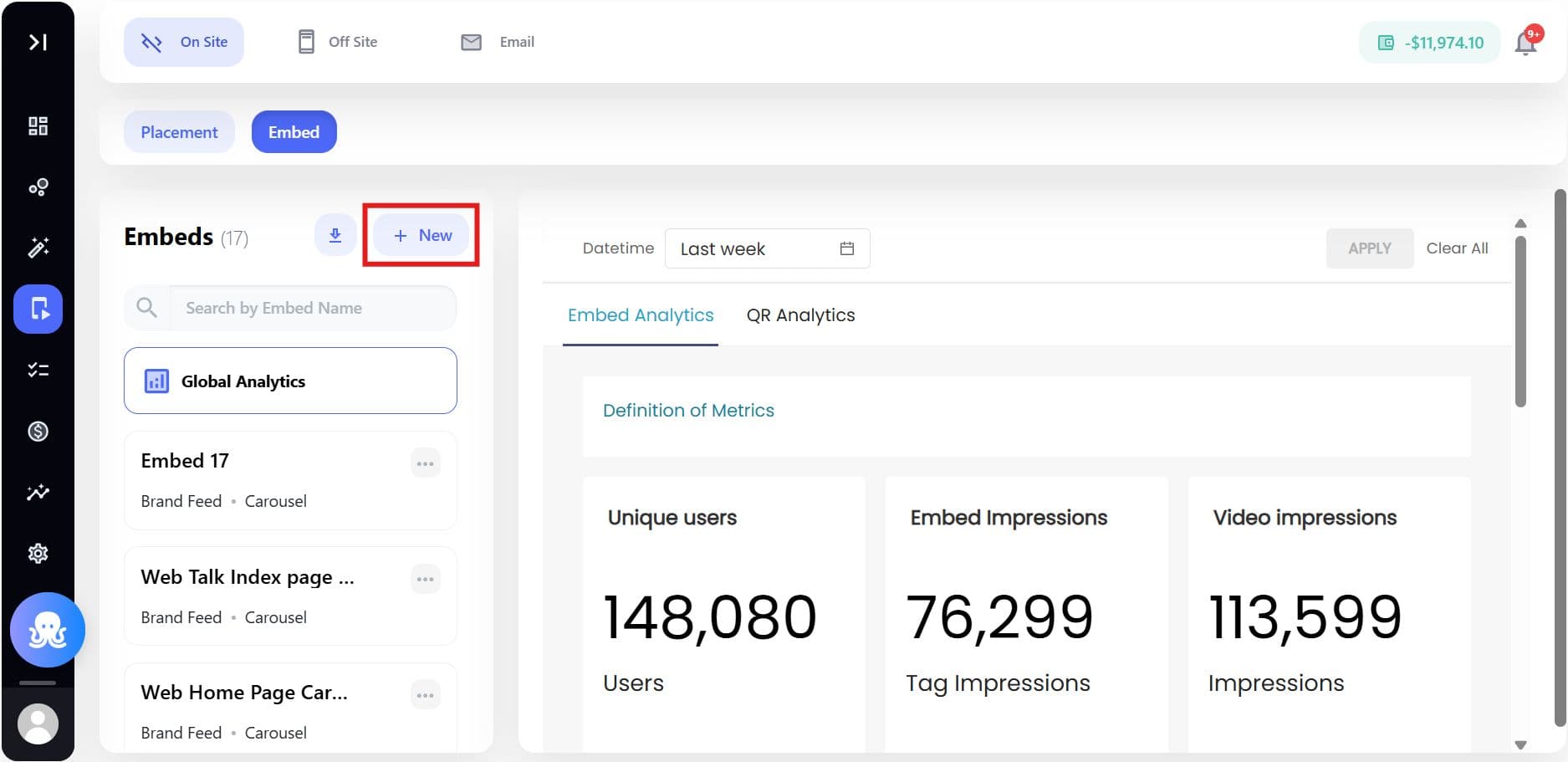
Step 2: Create a New Embed
Click: + New Embed
This opens the embed configuration panel.
Step 3: Name Your Embed
Provide a unique name for the embed.
Example:
- Homepage Community Feed
- Product Page Video Carousel
Naming helps identify and manage embeds later.
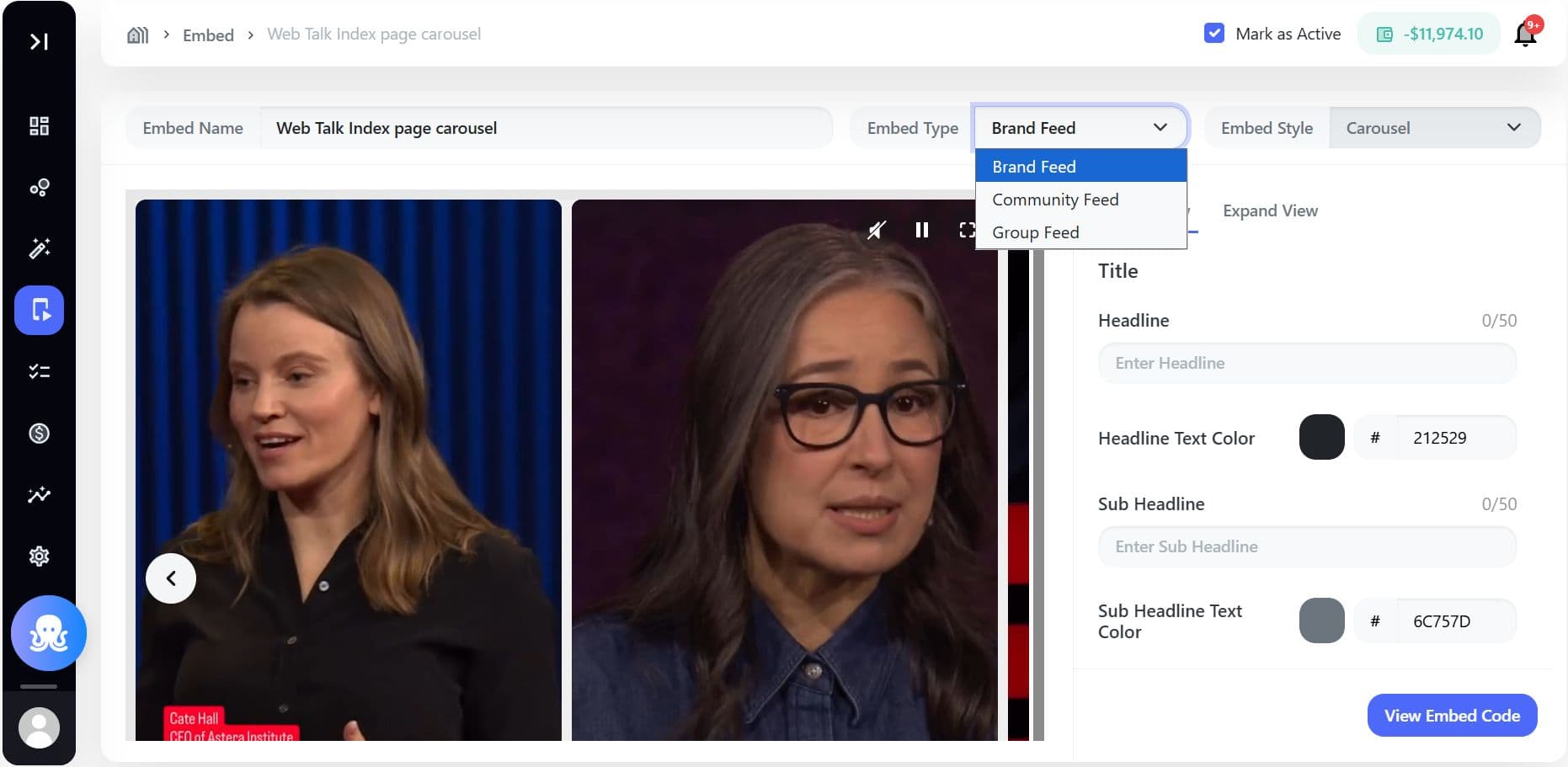
Step 4: Choose the Embed Feed Type
Select which content source will power the embed.
| Feed Type | Description |
|---|---|
| Brand Feed | Displays videos created or approved by the brand |
| Community Feed | Shows content from the entire community |
| Group Feed | Displays videos from a specific topic or group |
Step 5: Select the Embed Layout Style
Choose the visual layout for how videos will appear.
| Style | Description | Best Use Case |
|---|---|---|
| Standard Wall | Full video browsing layout | Dedicated video sections |
| Feed | Vertical scrolling experience | Discovery pages |
| Carousel | Horizontal scrolling video row | Homepage or product pages |
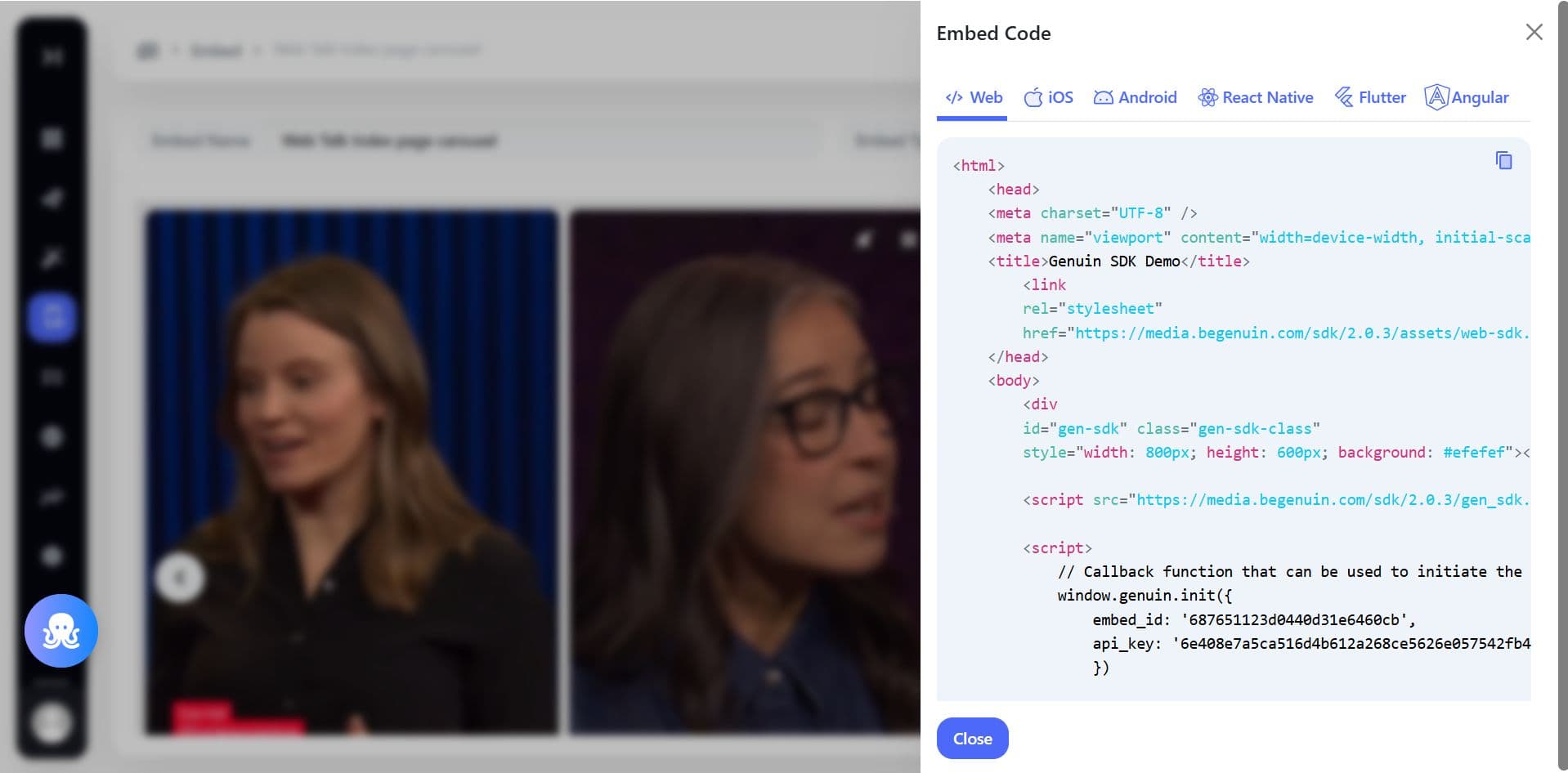
Step 6: Generate the Embed Code
Once configuration is complete:
- Click View Embed Code
- A side panel will open with the generated code
- Copy the embed snippet
Step 7: Add the Embed to Your Website
Paste the generated code into the location where you want the video experience to appear.
Examples include:
- Homepage content modules
- Product pages
- Campaign landing pages
- Community sections
The video experience will automatically render once the code is added.
Managing Your Embeds
After creation, all embeds appear in the Embed List within the Brand Control Center.
This section acts as a control panel where you can monitor performance and make adjustments.
Performance Metrics Available
Embeds include analytics to track engagement.
| Metric | What It Measures |
|---|---|
| Video Impressions | Number of times videos were displayed |
| Unique Users | Number of individual viewers |
| Embed Impressions | Total views of the embed module |
| Video Watched Duration | Total time spent watching videos |
| Video Completion Rate | Percentage of videos watched fully |
You can filter this data by date range, source, or engagement level.
Editing an Existing Embed
To modify an embed:
- Navigate to the Embed List
- Click Edit
- Update the feed type, layout, or configuration
- Save the changes
Updates apply automatically to the embed across your site.
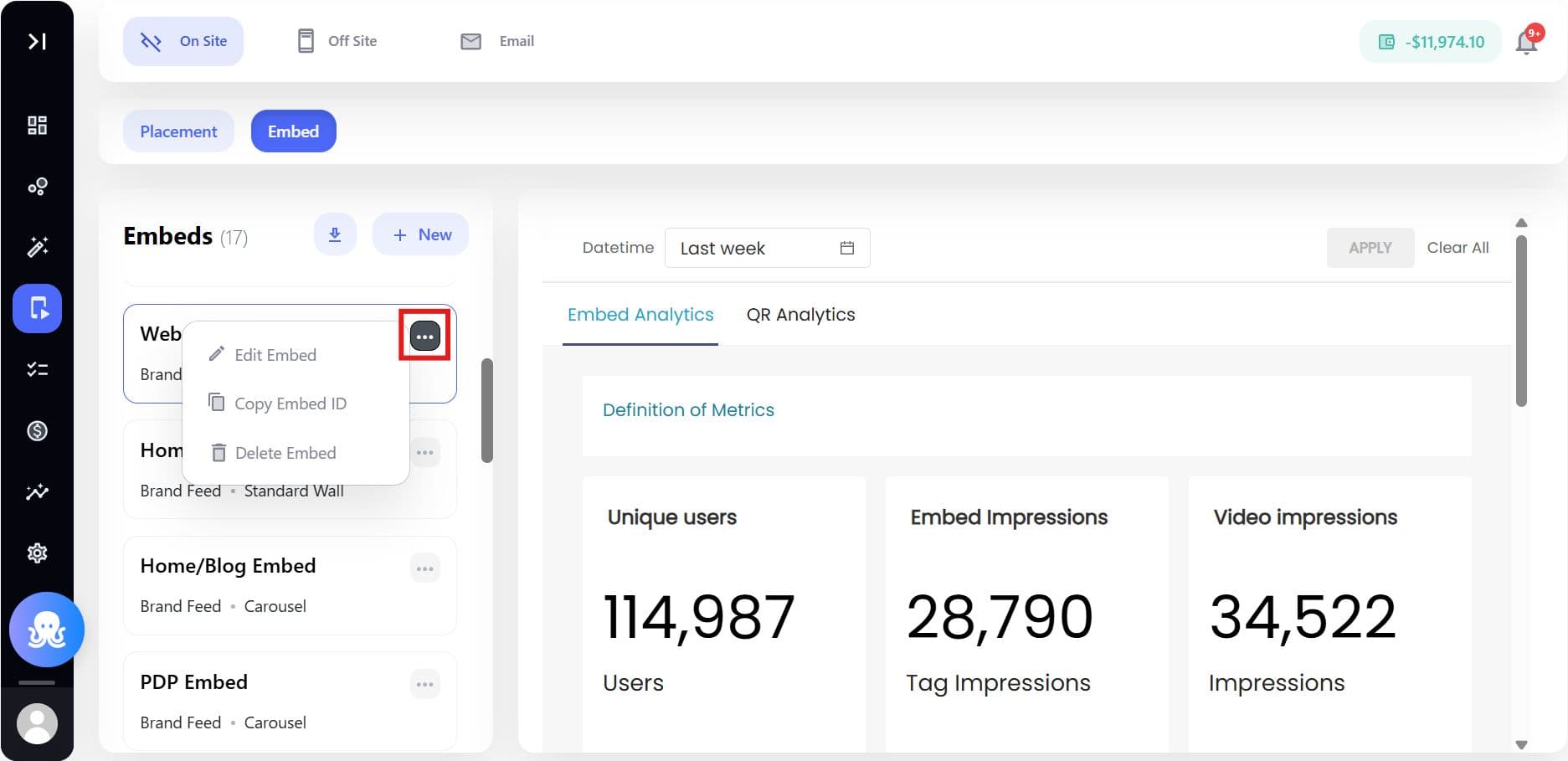
Deleting an Embed
If an embed is no longer required:
- Click Delete
- Confirm the action
This permanently removes the embed from both the dashboard and your website.
Example: Mobile Carousel Experience
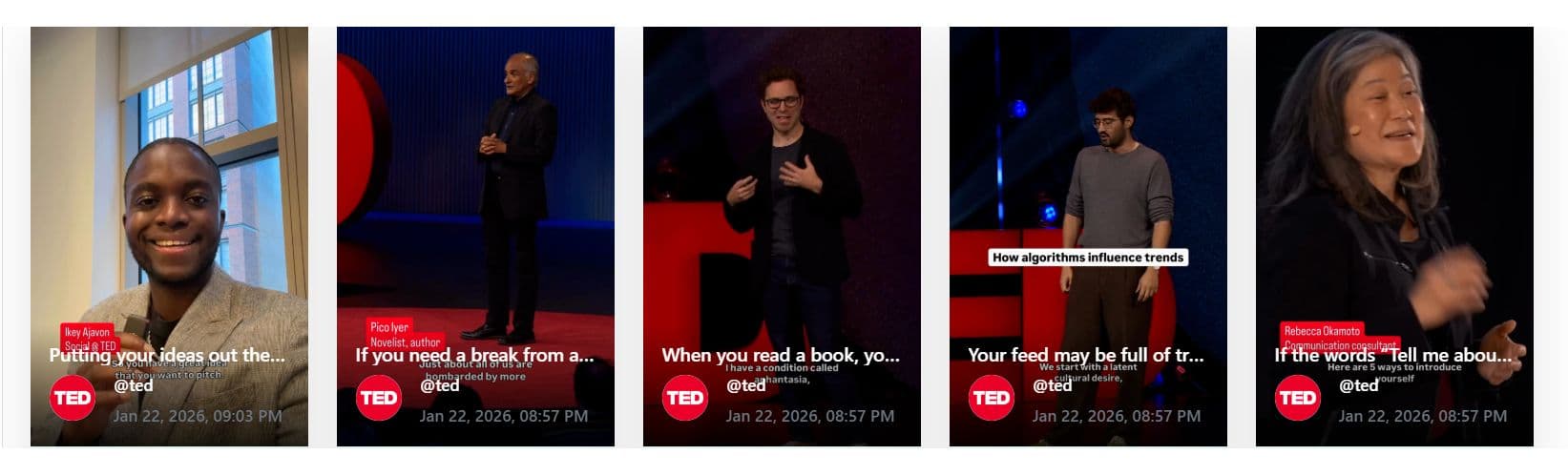
For mobile environments, the Carousel layout is commonly used.
It presents videos in a horizontal swipeable format, allowing users to browse multiple videos quickly without leaving the page.
This layout is particularly effective for:
- Product highlights
- Creator recommendations
- Campaign content
Final Thoughts
Genuin Embeds allow brands to turn their websites into interactive video experiences powered by their community.
By embedding dynamic video feeds across key pages, brands can:
- Increase time-on-site
- Drive product discovery
- Showcase creator and community content
- Maintain full control of the user journey within their own ecosystem.
